> ## Documentation Index
> Fetch the complete documentation index at: https://rive-ue-supported-platforms-20260610-update.mintlify.site/llms.txt
> Use this file to discover all available pages before exploring further.
# Layers
> Layers let you build more complex logic and animation with the state machine.
export const YouTube = ({id, timestamp}) => {
const videoSrc = timestamp ? `https://www.youtube.com/embed/${id}?start=${timestamp}` : `https://www.youtube.com/embed/${id}`;
return ;
};
A layer on the state machine allows you to play a single animation at a time. For this reason, you can create multiple layers if you wish to mix multiple animations or add additional interactions to a state machine.
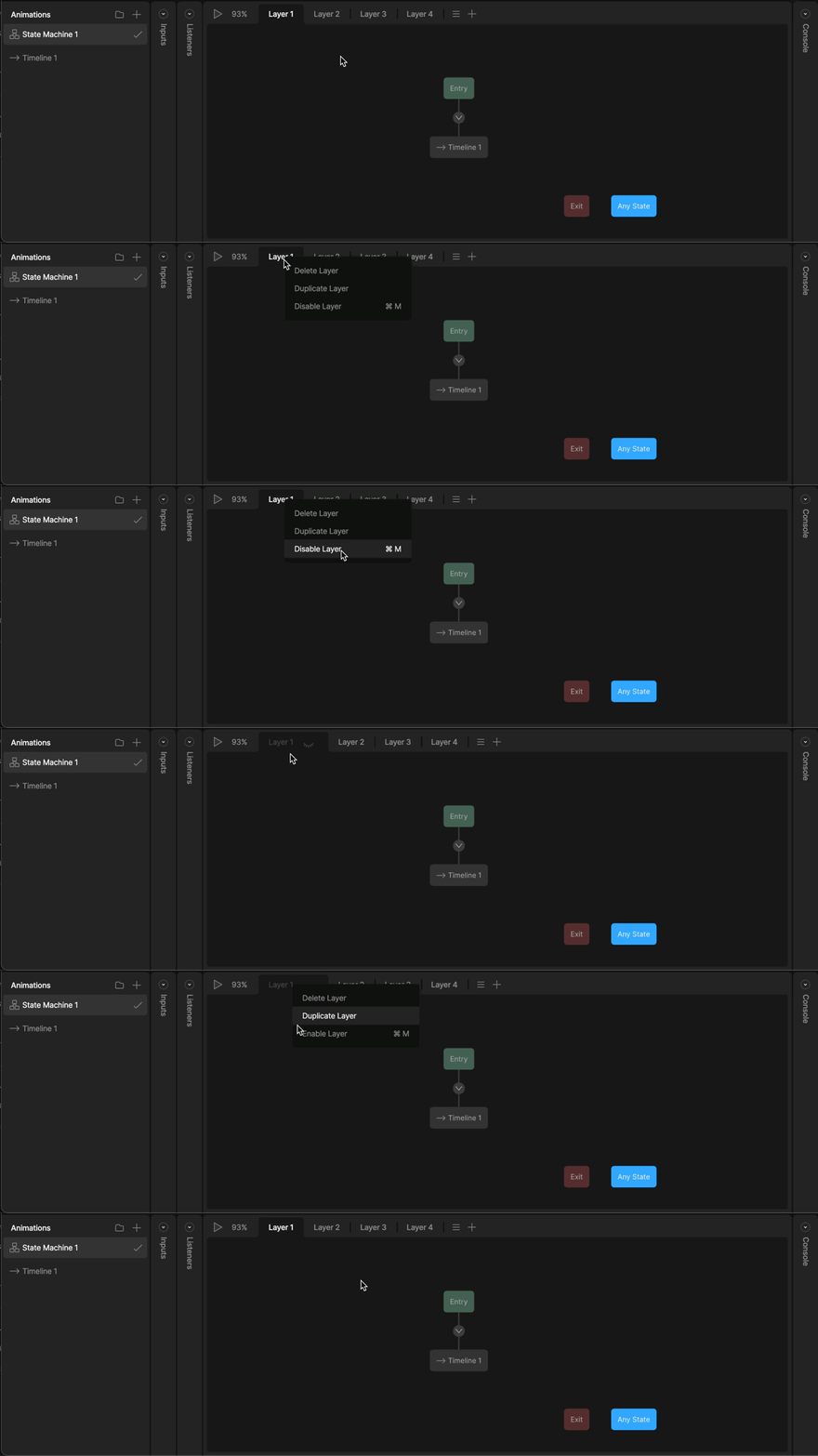
This example uses layers to mix different background animations, and add multiple interactions onto a single artboard.
### Creating a new layer
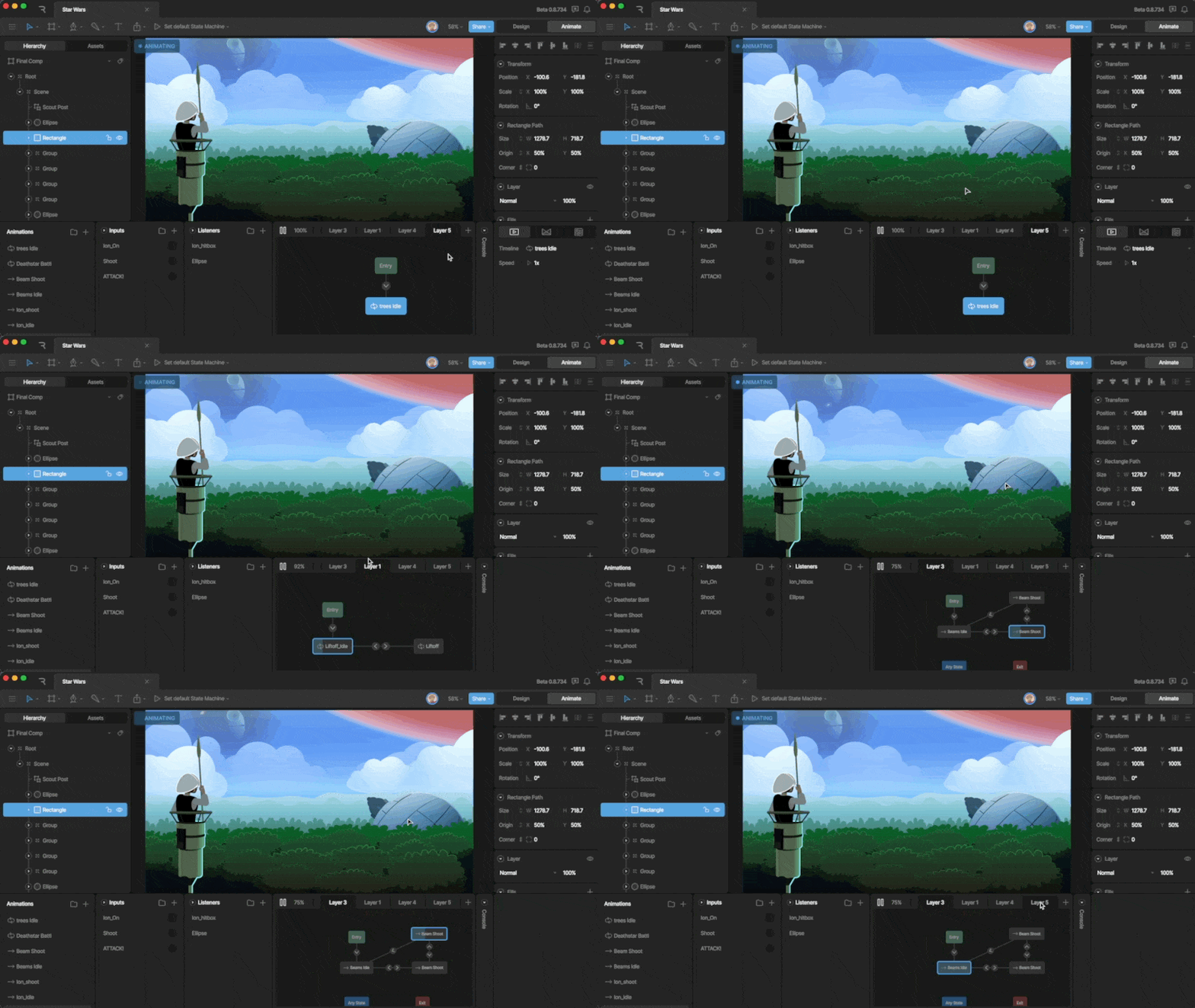
To create a new layer, use the plus button on the Layers Tab.
 Notice that each new tab that you create comes with the Default States.
### Layer Order
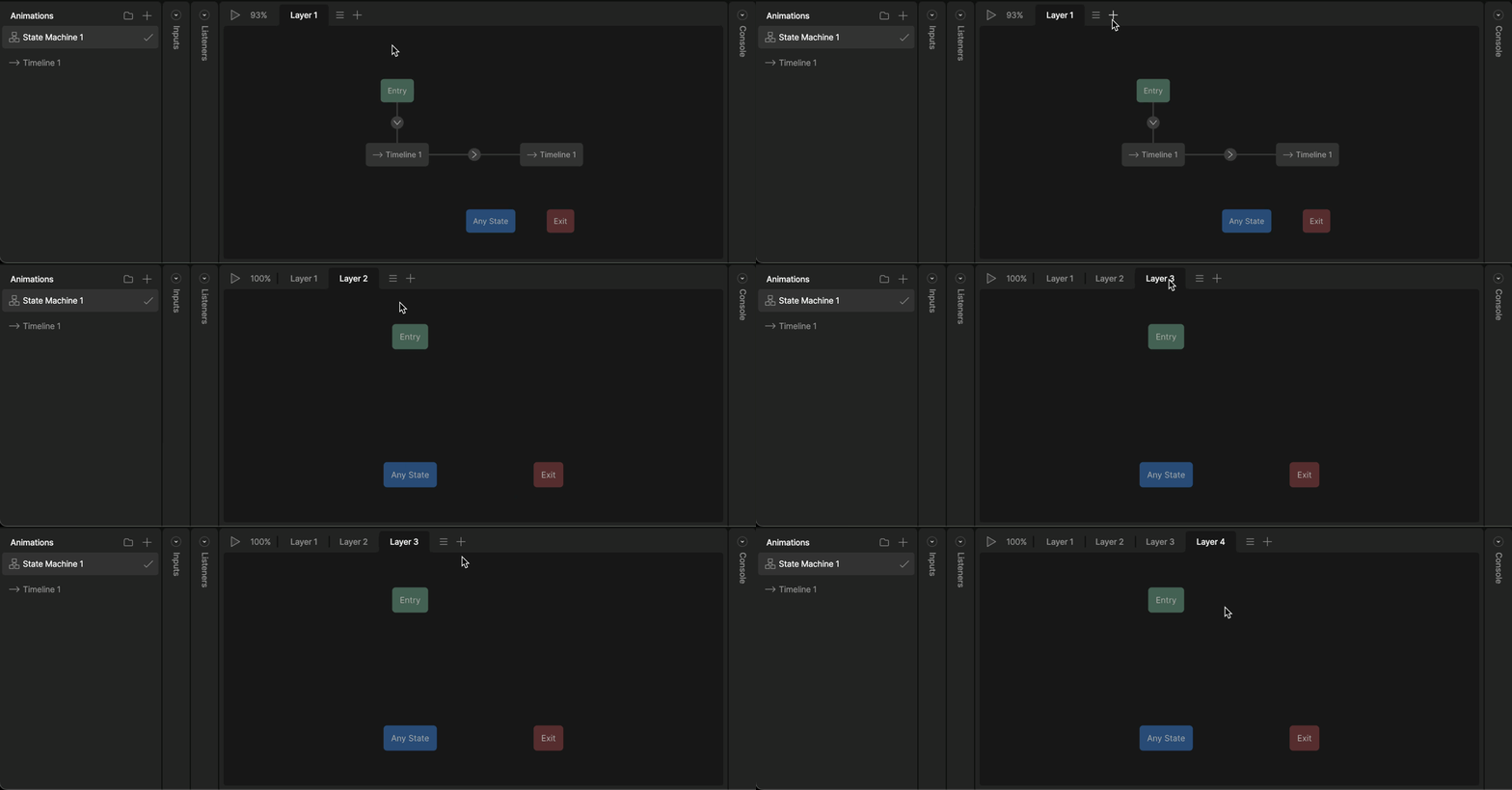
It may not be obvious, but the order of your Layers matter, with Layers to the right taking priority over the Layers to the left. In most cases, this won’t matter, but if your Layers have States that control the same object properties, the animations in the right most layer will take priority over the layers to the left as they mix.
**Changing layer order**
You can change the layer order by dragging and dropping your layers around on the Layers tab.
Notice that each new tab that you create comes with the Default States.
### Layer Order
It may not be obvious, but the order of your Layers matter, with Layers to the right taking priority over the Layers to the left. In most cases, this won’t matter, but if your Layers have States that control the same object properties, the animations in the right most layer will take priority over the layers to the left as they mix.
**Changing layer order**
You can change the layer order by dragging and dropping your layers around on the Layers tab.
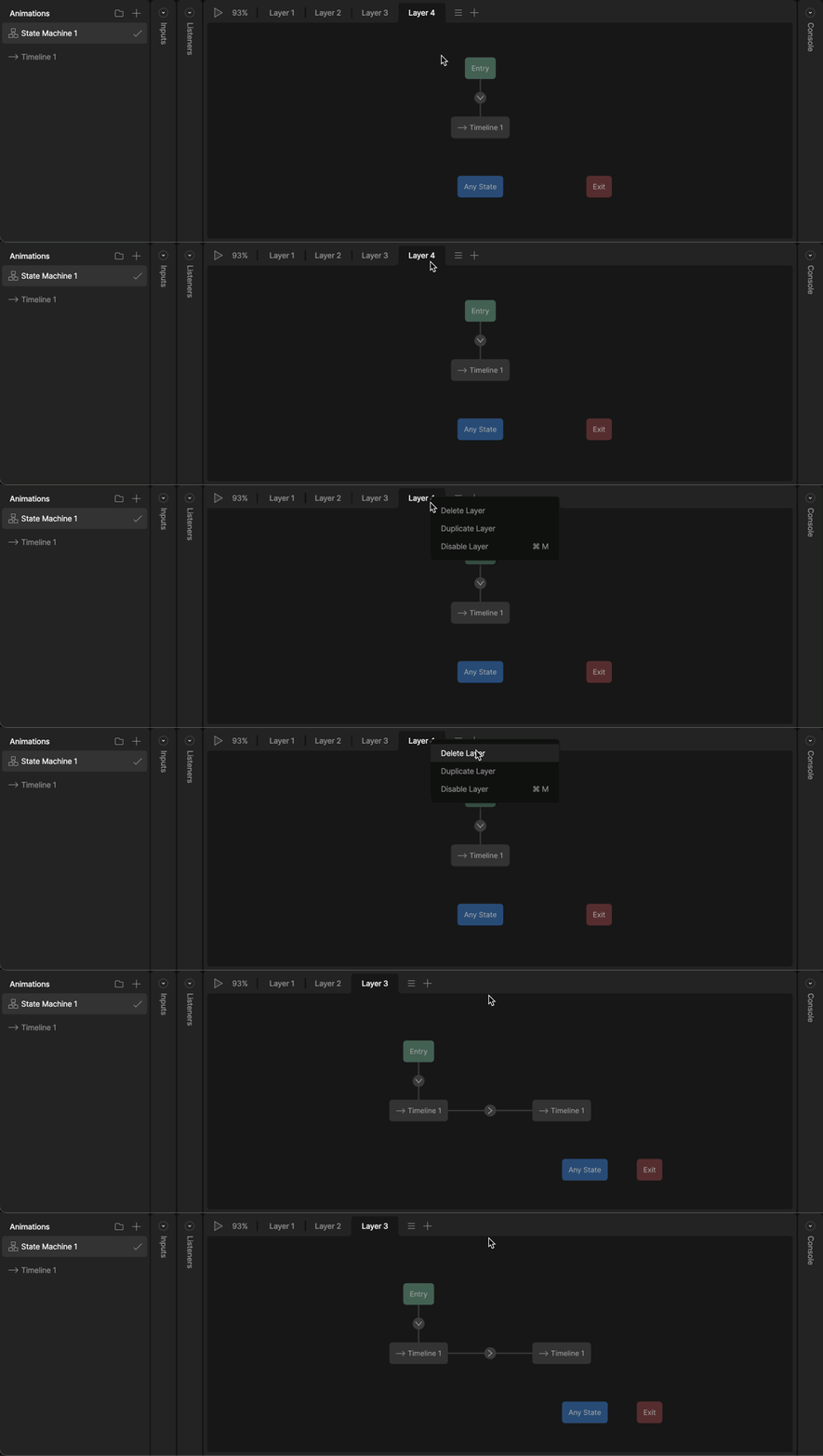
 **Delete layer**
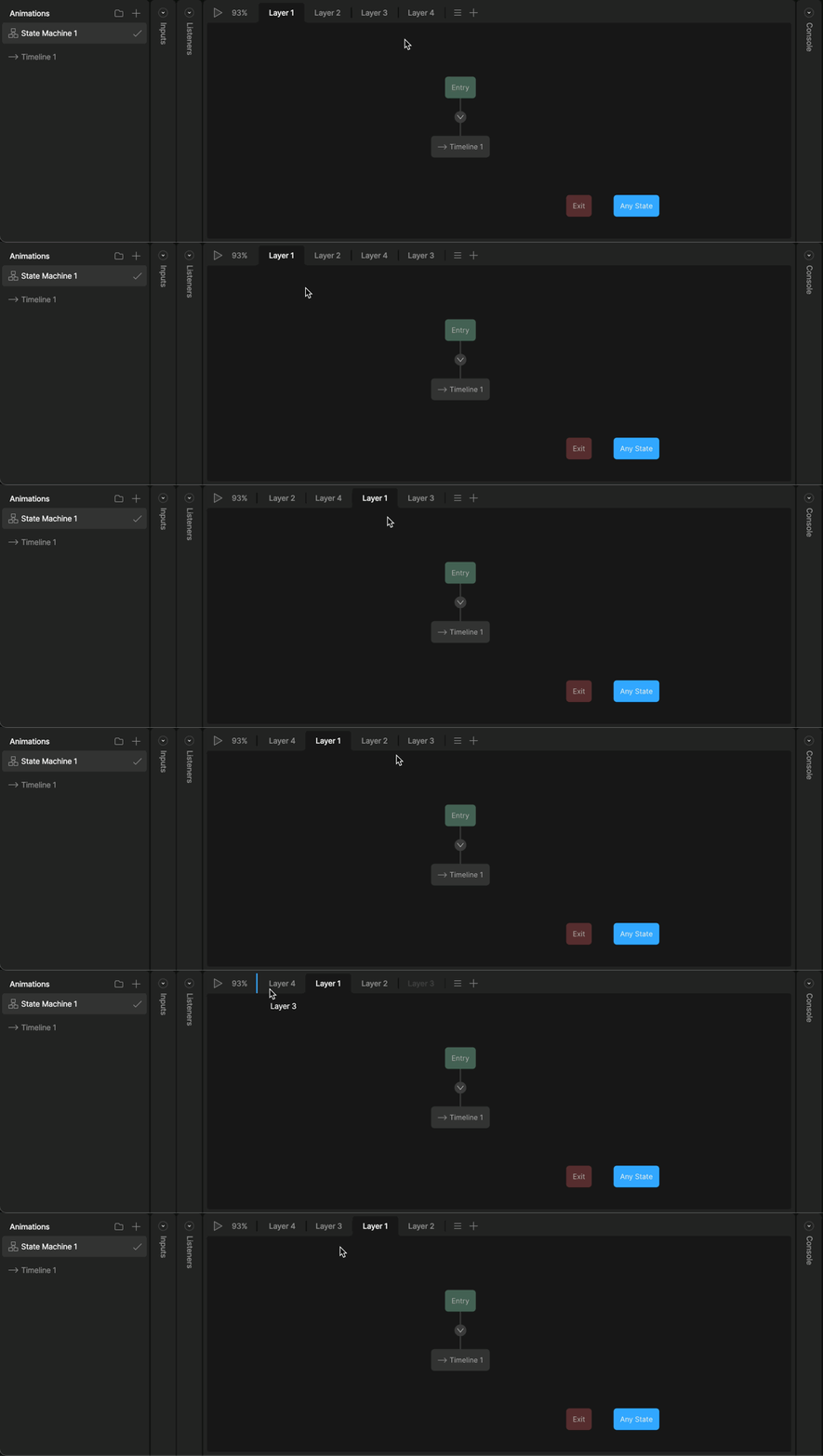
You can delete a layer with right click over the name and selecting the option "Delete Layer".
**Delete layer**
You can delete a layer with right click over the name and selecting the option "Delete Layer".
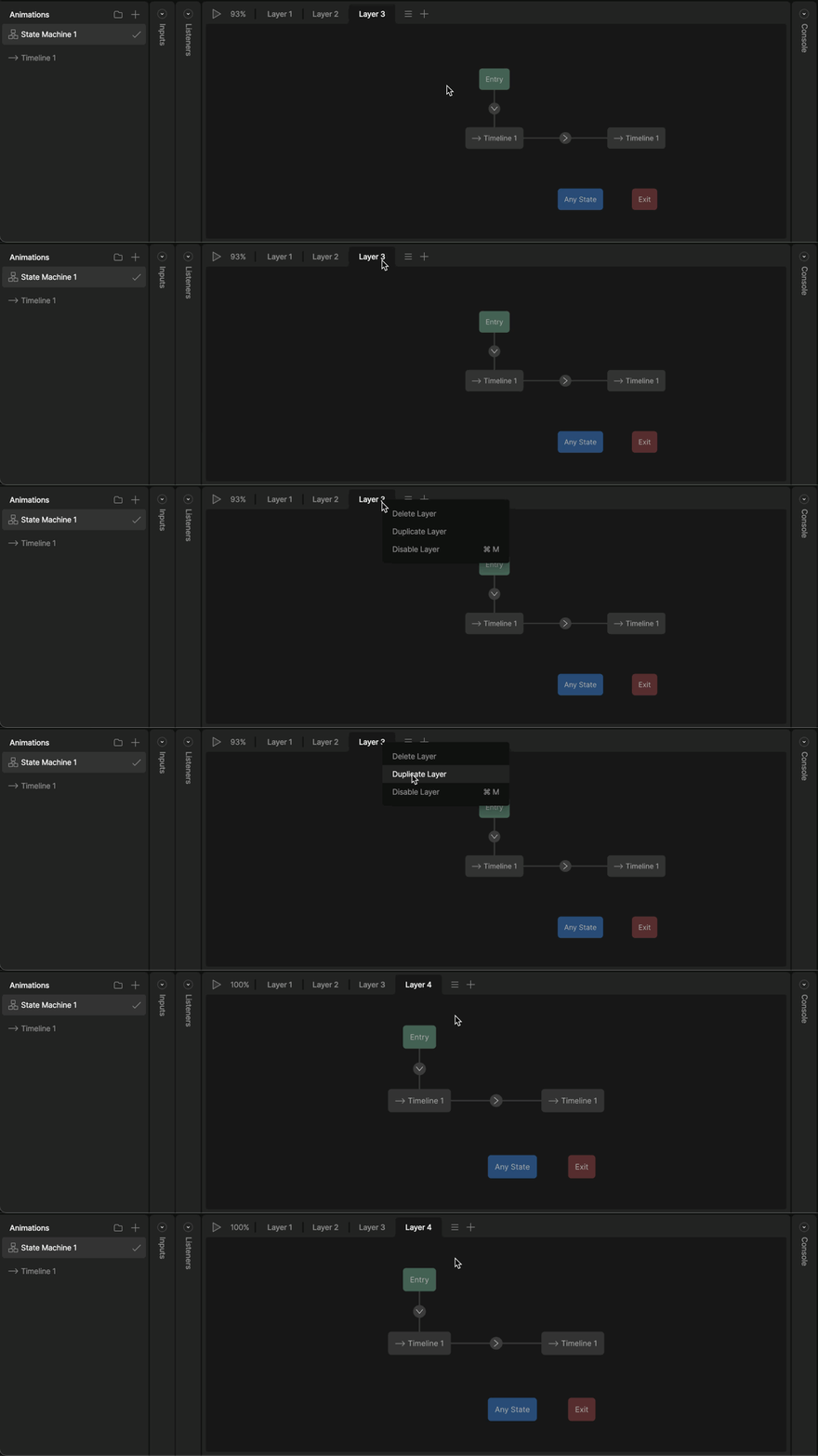
 **Duplicate layer**
You can delete a layer with right click over the name and selecting the option "Delete Layer".
**Duplicate layer**
You can delete a layer with right click over the name and selecting the option "Delete Layer".
 **Disable and Enable layer**
You can delete a layer with right click over the name and selecting the option "Delete Layer".
**Disable and Enable layer**
You can delete a layer with right click over the name and selecting the option "Delete Layer".